How to Update Yono Rummy on Android
Keeping Yono Rummy updated on your Android phone can help you access the version available from your download source and address some issues caused by an outdated installation. However, before downloading an update, it is important to check whether a newer version is actually available and whether the file comes from a source you can verify.
If you are searching for the Yono Rummy latest version, this guide explains how to check your installed version, find an available update, install an updated APK when appropriate, and troubleshoot common problems.
How to Check the Yono Rummy Latest Version
Before updating Yono Rummy, check the version currently installed on your device. This helps you determine whether an update may be necessary.
Follow these steps:
- Open Settings on your Android phone.
- Go to Apps or App management. The exact wording depends on your device.
- Find and select Yono Rummy, if it appears in the installed-app list.
- Open the app information screen and check any available version details.
- Compare the installed version with the version listed by your verified download source.
If the version number is not shown in Android settings, check the app’s own settings, About section or other available app information.
Important: A higher version number alone does not prove that an APK is genuine or safe. Check the source and file details before installing an update.
How to Update Yono Rummy on Android
The update process depends on how you originally installed the app and whether the provider offers an update mechanism.
Method 1: Check the Existing App for an Update
Some Android apps provide an update option within the app itself. If Yono Rummy has this feature in your installed version, you can check it first.
- Open Yono Rummy.
- Look for an update notice or an update option in the available menus.
- If an update is offered, review the displayed version information and destination.
- Continue only if the update source can be verified.
- Follow the instructions shown on your device.
If no update option is available, do not assume that your app is outdated. Check the version against reliable release information before taking further action.
Method 2: Update Yono Rummy Using an APK
If you originally installed Yono Rummy through an APK file, an update may also be distributed in APK format. The following steps apply to Android apps that support this installation method.
- Find a verifiable update source. Visit the download source you previously used or another source whose relationship to the app can be established.
- Check the release details. Look for the version number, release date, Android compatibility and file information. Do not rely on a page title that simply says “latest version”.
- Download the APK. Confirm that the download comes from the intended source and that the file has finished downloading.
- Review Android’s security warning. Read any warning shown by your device. Do not disable security protections simply to force an installation.
- Open the downloaded file. Android may ask whether you want to install an update. Review the app identity and requested access before proceeding.
- Complete the installation if the details check out. Follow the on-screen instructions.
- Open the app and check its version. Confirm that it launches normally and that the version information matches the release you intended to install.
Android may require permission to install apps from a particular source. Granting that permission can expose your device to additional risk, so enable it only when you have verified the source and genuinely need it. Turn the permission off again when it is no longer required.
Method 3: Check Whether an Official App Store Update Exists
If you installed Yono Rummy through an app store, open that store and search for the app. If the same app listing offers an update, review the listing and follow its update instructions.
Do not assume that an app is available on Google Play or another store without confirming the listing. If you cannot find a matching listing, use the app provider’s verifiable information to understand the supported update method.
What to Do If Yono Rummy Will Not Update
An update may fail for several reasons, including an incomplete download, insufficient storage, an incompatible APK or a conflict with the installed version. Try the following checks before attempting another installation.
| Problem | What to check |
|---|---|
| APK download fails | Check your internet connection and try again from the verified source. |
| Installation is blocked | Read the Android warning and confirm the file’s source and compatibility. |
| App says the package conflicts | Check whether the APK matches the installed app and whether it is a compatible update. |
| Not enough storage | Review available device storage and remove only files you no longer need. |
| App closes after updating | Restart the phone and check for another verified release or a compatibility issue. |
| Update page shows no new version | Check the release date and version information before concluding that an update is available. |
Check Your Internet Connection
A weak or interrupted connection can prevent an APK from downloading completely. Switch to a reliable Wi-Fi or mobile data connection and check whether the download finishes successfully.
Avoid installing a file that appears incomplete or whose size differs significantly from the information supplied by a trustworthy source without an explanation.
Check Available Storage
Your phone needs sufficient free storage to download and install an update. Open Android’s storage settings to check the available space.
Do not delete important personal files or app data without a backup. Clearing storage is not a guarantee that an update will work, especially if the actual issue is an incompatible or incorrect APK.
Check App Compatibility
An update may not install if the package is incompatible with your Android version or does not match the app already installed.
Do not uninstall Yono Rummy immediately to work around an installation error. Removing an app can delete local data, and reinstalling may not restore everything. Check the source and installation instructions first.
Contact the Relevant Support Channel
If the update continues to fail, look for a verifiable support channel associated with the app provider. Share the error message and your Android version, but do not disclose your password, OTP, UPI PIN or other sensitive account information.
Is It Safe to Download a Yono Rummy Update APK?
An APK update should be checked carefully because installing an app from outside a trusted app store involves additional risk.
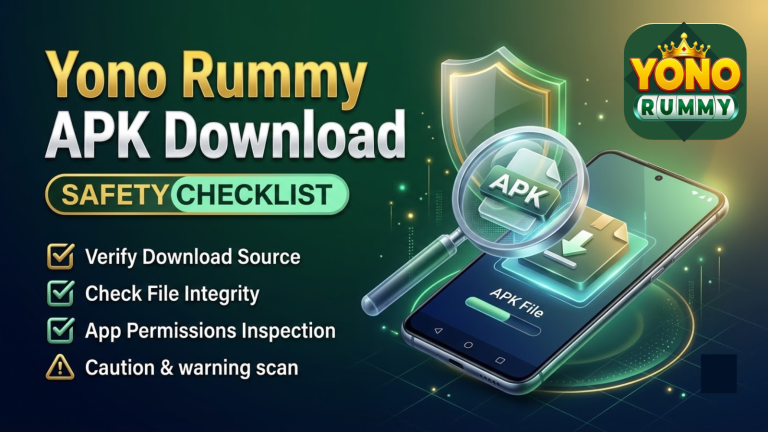
Before installing a Yono Rummy update, use this checklist:
- Verify the source: Confirm who provides the download and whether the source is connected to the app provider.
- Check the version: Compare the version number and release date with available release information.
- Review security warnings: Do not ignore warnings from Android or your device’s security tools.
- Review permissions: Consider whether the requested access is relevant to the app’s stated functions.
- Avoid modified APKs: Do not install files advertised as modified, unlocked or offering guaranteed rewards.
- Protect your account: Never share your password, OTP or payment PIN with someone claiming to help with an update.
A clean scan or successful installation does not prove that an app is completely safe. If you cannot verify the APK’s source, it is better not to install it.
Will Updating Yono Rummy Delete My Account or Balance?
Installing a compatible update over an existing app does not necessarily remove its local data, but the outcome depends on the app and the installation process. An update should not be treated as a guarantee that account information, settings or balances will remain unchanged.
Before updating:
- Confirm that you know how to access your account.
- Keep any relevant account and transaction records.
- Avoid uninstalling the existing app unless the provider’s verified instructions require it.
- If you have a balance or an unresolved transaction, check the provider’s support guidance before making changes.
Never share login credentials or payment PINs to recover an account after an update.
Frequently Asked Questions
How do I download the Yono Rummy latest version?
Check your installed version first, then compare it with release information from a verifiable download source. Download an updated APK only when you can establish that the source and file are legitimate. The current latest version has not been independently confirmed for this guide.
How often should I update Yono Rummy?
There is no verified fixed update schedule for Yono Rummy. Check for release information periodically or when the app displays an update notice. Do not download a new APK merely because a third-party page claims that an update is available.
Why is my Yono Rummy update not installing?
Common causes include an incomplete download, insufficient storage, Android compatibility issues or a package conflict. Review the error message, check the APK source and confirm that the update is compatible with your existing installation.
Can I update Yono Rummy without uninstalling it?
A compatible APK update may install over the existing app, depending on the package and Android’s installation checks. If Android reports a signature or package conflict, do not immediately uninstall the app or delete its data. Verify the update file and follow reliable instructions first.
What should I do if Yono Rummy asks me to install an unknown file?
Stop and verify the source before proceeding. Do not install an unknown or modified APK simply because a website describes it as the latest release. If the source cannot be established, do not continue.
Final Checklist Before Updating Yono Rummy
Before installing a Yono Rummy update on Android, make sure you have:
- Checked the version currently installed.
- Confirmed that a newer release is actually available.
- Verified the download source and APK details.
- Reviewed Android’s security warnings and requested permissions.
- Checked device storage and compatibility.
- Kept your account credentials and payment information private.
Updating an app should not mean compromising your device security. Verify the release first, use a compatible update method, and avoid unofficial files whose origin cannot be established.
Responsible use: Yono Rummy is described in the available project information as a multi-game platform with a real-money gaming component. Check the applicable laws in your state, age requirements and platform terms before participating. Real-money gaming can lead to financial losses and should not be treated as a source of guaranteed income.