How to Install Yono Rummy APK on Android
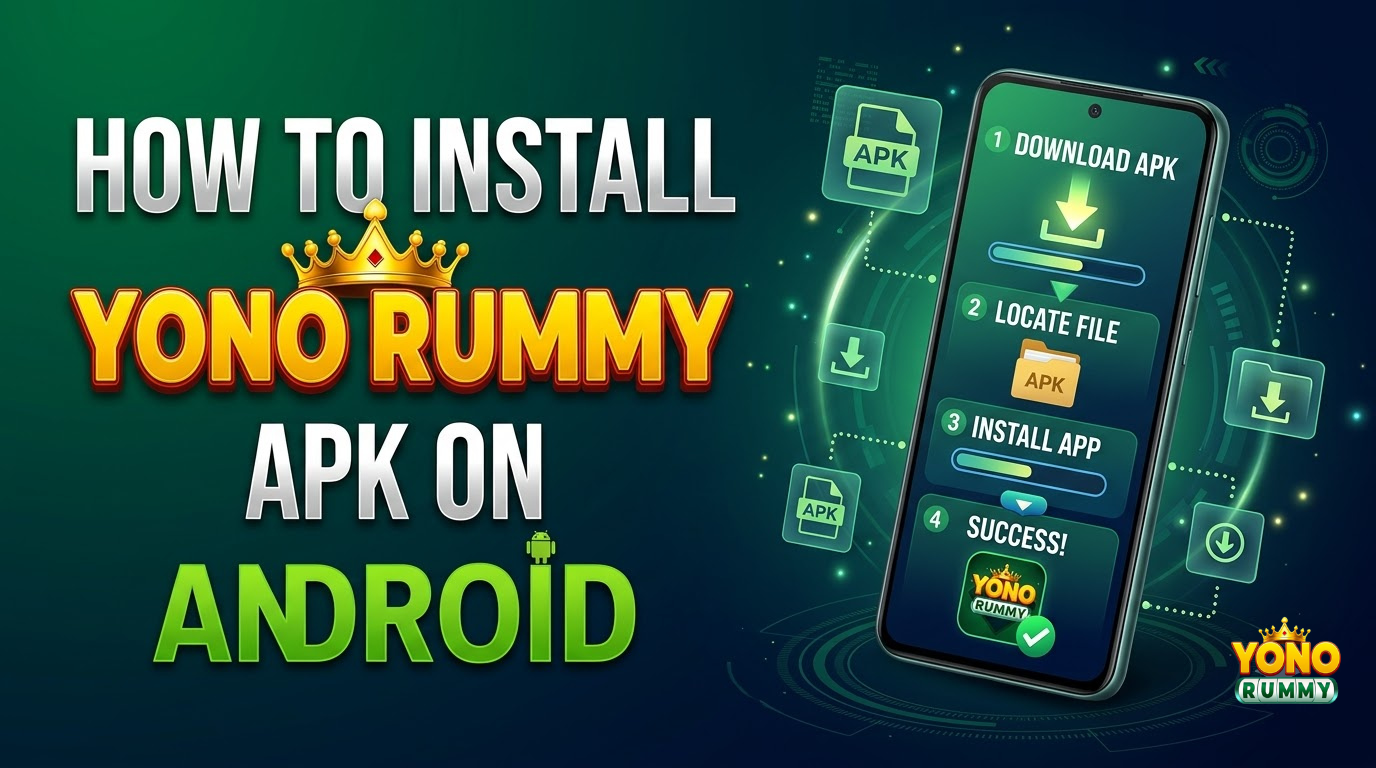
Want to install Yono Rummy on your Android phone? The process involves downloading the APK file, checking the download, allowing installation from the relevant source if Android asks, and completing the installation.
Yono Rummy is described as an Android-based, multi-game platform with rummy as its main focus. The app is distributed in APK format, so its installation process may differ from apps downloaded directly through Google Play.
In this guide, you will learn how to install Yono Rummy APK on Android, where to find the downloaded file, how to handle Android’s installation settings, and what to do if the app does not install correctly.
Before starting, make sure you have a compatible Android device, sufficient storage space and a reliable internet connection. Most importantly, verify the APK source before installing it.
What You Need Before Installing Yono Rummy
A few basic checks can help you avoid installation problems.
| Requirement | What to check |
|---|---|
| Device | An Android smartphone or tablet |
| Download file | A Yono Rummy APK from a source you can verify |
| Internet connection | Wi-Fi or mobile data |
| Storage | Enough free space for the downloaded file and installation |
| Android settings | Access to the installation permission for the relevant source, if required |
| Security | Your device’s security protection should remain enabled |
The Yono Rummy project reference lists Android 5.0 or later as the minimum requirement. However, this specification has not been independently confirmed for the current release. Check the requirements shown by the verified download source before proceeding.
How to Install Yono Rummy APK: Step-by-Step Guide
Follow these steps to complete the Yono Rummy install process on your Android device.
Step 1: Visit the Yono Rummy Download Page
Open your preferred browser on your Android phone.
Visit the verified Yono Rummy download page and look for the APK download option.
Before selecting the button, check the website address carefully. Make sure you are on the intended website rather than an unrelated page or a site that redirects you to an unfamiliar download.
If the source cannot be verified, do not proceed with the download.
Step 2: Download the Yono Rummy APK
Once you have checked the source, select the APK download option.
Your browser may display a confirmation message asking whether you want to download the file. Review the file name and source before confirming.
Wait for the download to finish.
You can usually check the progress through your browser’s download section or the notification panel. Avoid opening an incomplete file, as it may not install correctly.
If the download stops unexpectedly, check your internet connection and available storage before trying again.
Step 3: Locate the Downloaded APK File
After the download is complete, open your phone’s file manager.
Look for the Downloads folder. Depending on your device, the downloaded APK may also appear in your browser’s download history.
Find the file you downloaded for Yono Rummy.
Before opening it, check that:
- The file name matches the intended application.
- The download has completed successfully.
- The file came from the source you checked.
- Your device has not displayed an unresolved security warning.
If you cannot identify the file or its source, do not install it.
Step 4: Allow Installation From the Relevant Source
When you open an APK downloaded through a browser, Android may display a message indicating that installation from that source is not permitted.
This is an Android security setting designed to control which applications can install software on your device.
If you have independently verified the APK and decide to continue, Android may provide an option to open the relevant settings.
The exact wording varies by Android version and device manufacturer. You may see an option similar to:
- Allow from this source
- Install unknown apps
- Open settings
If you choose to proceed, enable the permission only for the source you are using, such as your browser or file manager.
Important: Allowing installation from a source does not verify the APK’s authenticity or guarantee that it is safe. Do not disable Google Play Protect or bypass a harmful-app warning to complete the installation.
Step 5: Install the Yono Rummy APK
Return to the downloaded APK file after reviewing the required setting.
Tap the file to open the installation screen.
Android may display the application’s name and ask you to confirm the installation. Review the information shown on your device.
If the source and file checks are satisfactory, select the Install option.
Wait for Android to complete the installation process.
The time required may vary depending on your device, available storage and the APK itself.
Step 6: Open the App
Once installation is complete, Android may display an Open option.
You can select it to launch the application. Alternatively, return to your home screen or app drawer and look for the Yono Rummy icon.
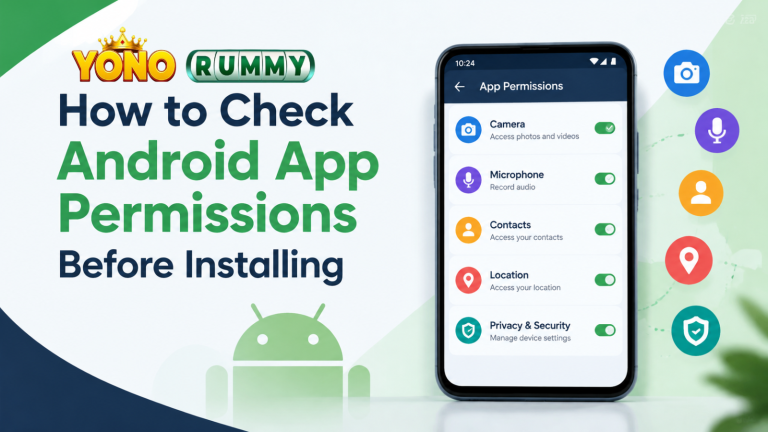
If the application opens successfully, review its initial screens and any permissions it requests.
Do not grant unnecessary access to your contacts, messages, files or other sensitive information. If the app requests a permission that you do not understand, pause and investigate before continuing.
Step 7: Complete Registration if Required
After opening the app, follow the registration instructions displayed on the screen.
The available Yono Rummy project information describes registration using a mobile number, followed by any required verification.
The exact registration requirements may change, so follow the current instructions shown within the application.
Before creating an account:
- Review the applicable terms and privacy policy.
- Check the age and location requirements.
- Understand how your personal information will be used.
- Do not share your OTP, UPI PIN or banking password with another person.
Registration and verification do not guarantee that every game or payment feature will be available to you.
What to Do If Yono Rummy APK Is Not Installing
Sometimes an APK may fail to install even after the download is complete. The cause may be related to the file, device compatibility, storage or Android security settings.
Here are some common situations and the steps you can take.
| Installation problem | What you can try |
|---|---|
| APK download is incomplete | Check your internet connection and download status. |
| Android blocks the installation | Read the security message and verify the source before deciding whether to proceed. |
| Insufficient storage | Free up space on your device. |
| App is not compatible | Check the Android requirements provided by the verified source. |
| Installation fails repeatedly | Delete the incomplete or problematic file and reassess the source. |
| App does not open after installation | Restart your phone and check whether the app has any compatibility or update information available. |
| Existing app conflicts with the APK | Check whether the installed version and downloaded package are compatible. Avoid uninstalling an existing app before considering account access and data implications. |
Why Does Android Block the Yono Rummy Installation?
Android may restrict an APK installation because the file comes from outside an approved app-distribution source.
It may also display a warning if the file appears potentially harmful or does not meet certain security requirements.
These warnings should not be treated as ordinary installation obstacles.
If your device identifies the APK as harmful, do not bypass the warning. Verify the file and source before taking any further action.
What If the Yono Rummy APK Download Is Stuck?
A download may stop because of a weak internet connection, insufficient storage or a problem with the website.
You can try the following:
- Check whether your internet connection is working.
- Review the available storage on your phone.
- Check the browser’s download history.
- Confirm that the source is still accessible.
- If the file is incomplete, remove it and reassess the download source before trying again.
Avoid downloading multiple APK copies from unfamiliar websites simply because the first download did not work.
Is It Safe to Install Yono Rummy APK on Android?
The safety of an APK depends on its source, file identity, permissions and behaviour. The app name alone cannot establish whether a particular download is genuine.
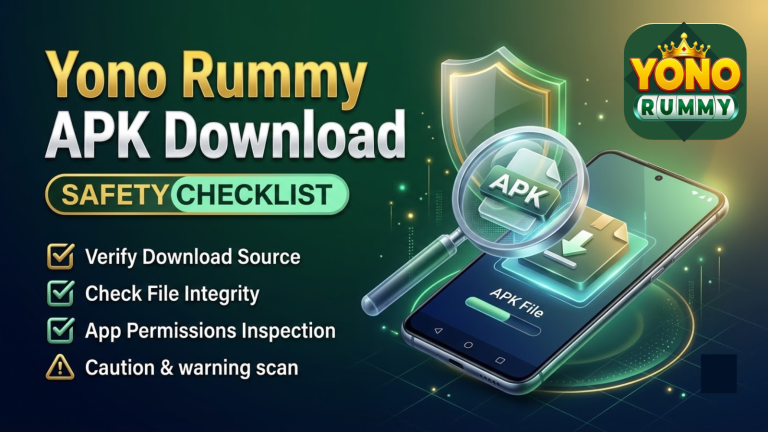
Before completing your Yono Rummy installation, consider these precautions:
- Verify the website offering the APK.
- Check the version and file details against reliable information.
- Scan the downloaded file with available security tools.
- Review Android’s security warnings.
- Examine the permissions requested by the application.
- Read the privacy policy and applicable terms.
- Avoid sharing sensitive payment credentials.
A successful installation does not prove that the application is secure, fair or legally available in your location.
Yono Rummy is described as a multi-game platform. If you intend to use real-money gaming features, check the applicable laws and eligibility requirements in your state before registering or depositing money.
Frequently Asked Questions
1. How do I install Yono Rummy APK on Android?
Visit a download source you can verify, download the APK, locate it in your phone’s Downloads folder, and review any Android security prompt. If you decide to proceed after checking the file, install it and follow the app’s registration instructions.
2. Can I install Yono Rummy from Google Play?
The available project reference describes Yono Rummy as an APK-distributed Android application. Its current Google Play availability has not been independently verified. Check the relevant app listing or verified download source before making a decision.
3. Why do I need to allow installation from an unknown source?
Android restricts installations from sources outside its usual app-distribution process. An APK downloaded through a browser may require a separate installation permission. This setting does not confirm that the file is genuine or safe.
4. How long does it take to install Yono Rummy APK?
The time depends on your internet connection, the APK file size, device performance and available storage. There is no fixed installation time that applies to every Android phone.
5. What should I do if the Yono Rummy APK is not installing?
Check whether the download is complete, review your available storage, confirm Android compatibility and read the installation error. If a security warning appears, investigate it rather than bypassing it.
6. Can I install Yono Rummy on an iPhone?
The available project reference describes Yono Rummy as an Android application distributed through an APK. It does not establish the availability of an iOS version. An Android APK cannot be installed directly on an iPhone.
7. Is it necessary to disable Google Play Protect to install Yono Rummy?
No. You should not disable Google Play Protect merely to install an APK. If your device displays a security warning, verify the source and understand the warning before taking any further action.
8. What should I do after installing Yono Rummy?
Open the application, review its permissions and read the registration instructions. Before sharing personal information or making a payment, check the privacy policy, terms and applicable eligibility requirements.
Final Thoughts
Installing Yono Rummy APK on Android involves downloading the file, checking its source, reviewing Android’s security settings and completing the installation.
The process may be straightforward, but the safety checks are important. Do not ignore security warnings, grant unnecessary permissions or install files from unfamiliar websites simply to get the application running.
If you decide to proceed, verify the APK before installation and review the app’s registration and privacy terms before sharing personal information.
Remember: Real-money gaming involves financial risk and is not a reliable source of income. Check the applicable age and state-specific legal requirements before participating, and play responsibly.